![UrbanSDK_primary_logo_horizontal_white.png]](https://urbansdk-9267502.hs-sites.com/hs-fs/hubfs/UrbanSDK_primary_logo_horizontal_white.png?height=40&name=UrbanSDK_primary_logo_horizontal_white.png)
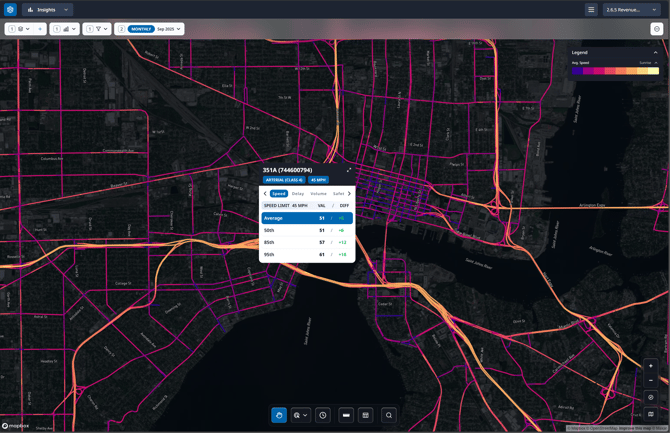
Interface Layout
Action Bar
The Insights interface features a streamlined design with all main map controls consolidated into the Action Bar above the map. Key components include:
- Layer dropdown - Add locations and adjust their visibility
- Metrics dropdown - Select analytics to map
- Filters dropdown - Apply visual data filters
- Date / Time dropdown - Configure time-based filters
- Report Options - Save, export, and share your Insights

Tool Bar
The toolbar is located in the center-bottom of your screen and is where tools for interacting with the map can be accessed including:
- Pan Mode
- Selection Tools - Tools for selecting data on the map for analysis
- Timelapse - Time scrubber for sifting through the selected time period
- Measuring Tool - Measure straight distances on the map
- Table View - View the map data in table format
- Address Search - Search and find a location on the map

Getting Started
To get started on your journey to using Urban SDK for analysis we encourage you to complete the in-app tutorials within Insights. The tutorial should present on first login, but if not, you can always access and replay tutorials from the Report Options menu.
There are four tutorials that cover the following topics:
- Insights Essentials: Learn to use the core functionality of Insights
- Analysis Tools: Learn how to interact with map data
- Layer Creation & Management: Create, manage & add a layer to the map
- Advanced Visualization: Create, manage & add a layer to the map

Summary
The Insights module provides a comprehensive suite of tools for traffic analysis, from basic location setup to advanced data export and issue reporting. By following these steps, you can effectively analyze geospatial patterns, create meaningful reports, and share insights with your team while maintaining data accuracy through built-in editing and flagging capabilities.