![UrbanSDK_primary_logo_horizontal_white.png]](https://urbansdk-9267502.hs-sites.com/hs-fs/hubfs/UrbanSDK_primary_logo_horizontal_white.png?height=40&name=UrbanSDK_primary_logo_horizontal_white.png)
1.0 Introduction
The Analytics Panel in Insights allows you to generate PDF reports that capture both your data summaries and a snapshot of your current map view. Exporting a PDF is useful for sharing results, archiving study outputs, or including visuals in presentations. The exported file reflects exactly what is visible in the Analytics Panel and your map viewport at the time of export, ensuring your report matches the analysis you’ve prepared.
2.0 Exporting PDF
Follow these steps to export a PDF from the Analytics Panel within Insights:
1. Open the Analytics Panel:
- Click any road link to display the Analytics Panel
2. Confirm Report Content:
- Make sure the desired travel direction is selected
- The exported PDF will only include the data currently visible in the Analytics Panel
3. Confirm Map Image:
- Adjust your map viewport so the features summarized in the Analytics Panel are visible
- The PDF will capture the map image from your viewport (without the Analytics Panel)
⚠️NOTE: If you want the PDF to show a specific view of your study data, set your viewport accordingly before exporting!
4. Export PDF:
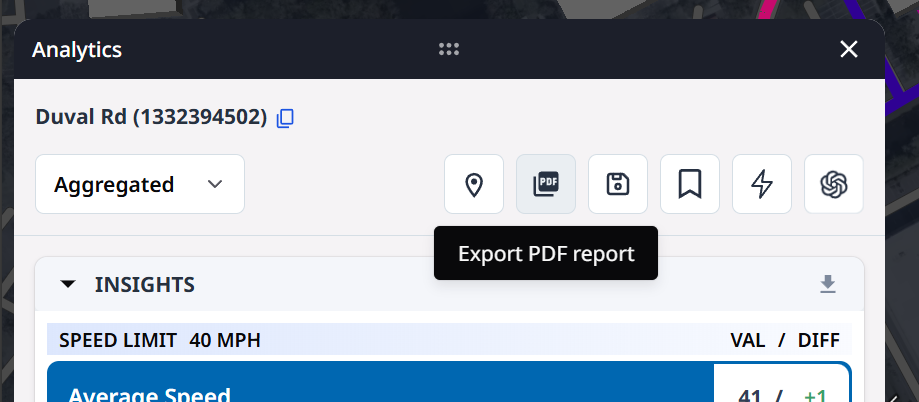
- Click the PDF Export button at the top of the Analytics Panel
- The system will process the export for several seconds, then prompt you to download the PDF in your browser