![UrbanSDK_primary_logo_horizontal_white.png]](https://urbansdk-9267502.hs-sites.com/hs-fs/hubfs/UrbanSDK_primary_logo_horizontal_white.png?height=40&name=UrbanSDK_primary_logo_horizontal_white.png)
Forms are accessible via a simple URL that any resident can visit to report a concern — no login, no account required.
1. Drop a Pin or Search for an Address
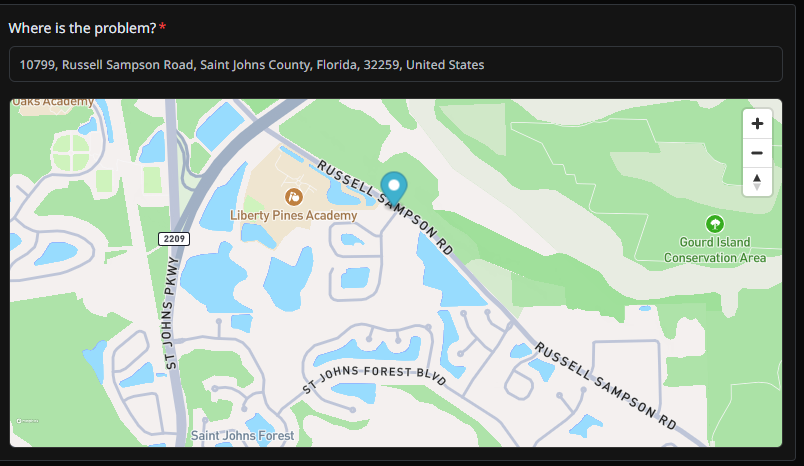
Residents drop a pin directly on the map or type in the address to show exactly where the issue is happening. No guessing, no vague descriptions like "somewhere on Main Street" — the location is precise from the start.
2. Choose a Concern Type
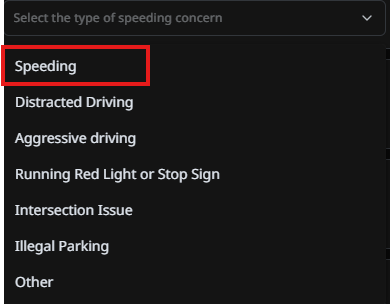
Residents select from a curated list of concern types, which keeps reports organized and easier to route to the right team. For a speeding report, they'd select Road Safety.

3. Specify the Exact Problem
Within that category, the resident narrows down to the specific concern — in this case, Speeding. This level of detail helps your team prioritize and respond faster than a vague, unstructured complaint would.
4. Spam Protection
A quick reCAPTCHA check keeps spam out, so your team is only reviewing legitimate concerns.
5. Submit
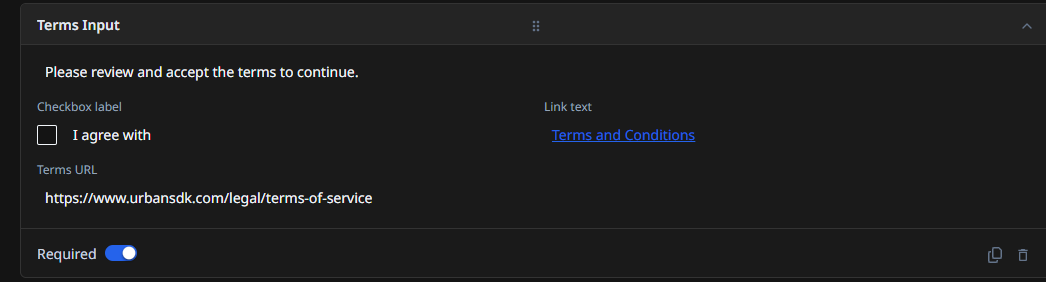
With one click, the concern is submitted directly to your team — no phone calls, no emails, no manual re-entry into a spreadsheet.
6. Instant Confirmation
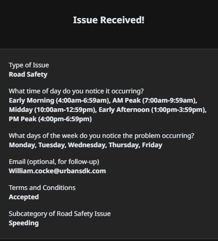
The resident receives instant confirmation that their form was received. This transparency builds trust — residents know their concern didn't disappear into a void.
Part 2: The Staff Review & Validation Experience
Once a form is submitted, the perspective shifts to your team, reviewing and validating the concern using real roadway data.
1. Automatic Placement on the Map
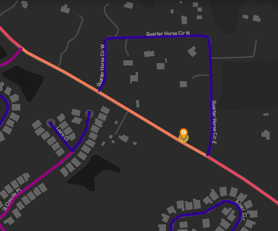
Every new form submission automatically appears on your Insights map, pinned to the exact location the resident flagged — no manual entry needed on your end either.
2. Open the Submission
Click on the pin to open the submission details and begin your review.
3. Confirm What Was Reported
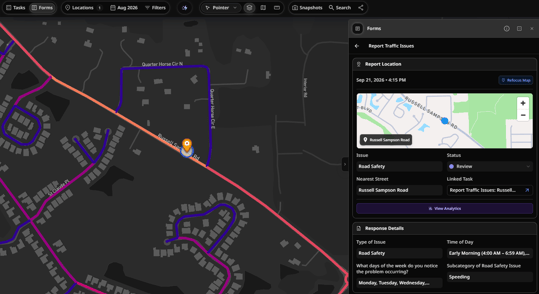
Start by confirming the nature of the complaint — in this example, a speeding concern on a specific roadway. Here on Russell Sampson Road, a citizen indicated that speeding is occuring Monday through Wednesday during the early morning hours.
4. Pull the Real Data
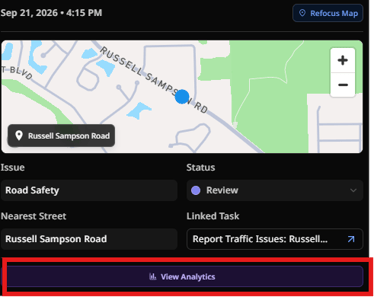
Pull the actual roadway data for that segment to see whether the concern holds up, or whether it's perception-based. Select "View Analytics"
5. Validate
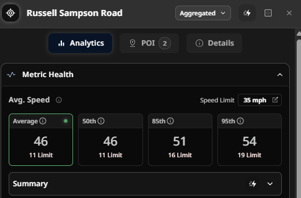
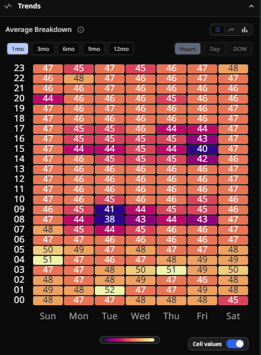
In this example: the data shows a 35 MPH speed limit with an average speed of 46 MPH — well over the posted limit. This confirms the complaint is a systemic issue that requires immediate attention. Your team now has data-backed evidence to respond to the resident and prioritize proactive deployment to the field or implement permanent traffic calming measures.
The Takeaway
This workflow replaces the traditional complaint cycle — phone calls, emails, manual triage, and field visits just to confirm whether a concern is real — with a direct, data-driven path from resident report to validated answer, all inside one platform.
Ready to Build Your Own Form?This overview shows the experience once a form exists. For step-by-step instructions on building a custom form for your own agency — including field types, categories, and publishing — see the companion article: Create a Form (3.0).