![UrbanSDK_primary_logo_horizontal_white.png]](https://urbansdk-9267502.hs-sites.com/hs-fs/hubfs/UrbanSDK_primary_logo_horizontal_white.png?height=40&name=UrbanSDK_primary_logo_horizontal_white.png)
1.0 Introduction
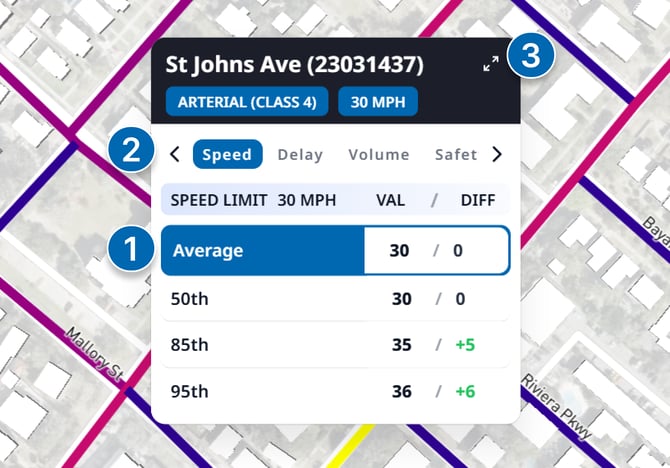
The hover tooltip provides quick analytics when you move your cursor over a map feature. It’s designed for fast, at‑a‑glance insights without opening the full panel.
⚠️NOTE: For bi‑directional roads, the tooltip only displays aggregated data. To view directional data (e.g., Direction A vs. Direction B), open the full Analytics Panel.
2.0 Hover Tooltip
Follow these steps to explore tooltip functionality:
1. Review Insights
- Hover over a road link to highlight it and view metrics from the active map layer
2. Change Metrics Category
- Use the metrics category selector to switch between different types of metrics for the highlighted link
3. Open Analytics Panel
- Click the Expand button (top‑right of the tooltip) to open the full Analytics Panel for detailed analysis