![UrbanSDK_primary_logo_horizontal_white.png]](https://urbansdk-9267502.hs-sites.com/hs-fs/hubfs/UrbanSDK_primary_logo_horizontal_white.png?height=40&name=UrbanSDK_primary_logo_horizontal_white.png)
1.0 Introduction
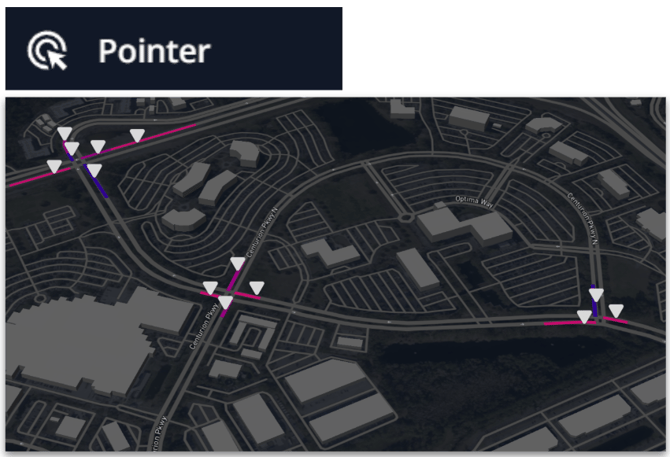
The pointer selection enables you to click one or more links directly on the map to target multiple specific segments to analyze together. This is useful for quickly aggregating several links along a stretch of roadway, or to select specific links like Intersection approaches.
2.0 Pointer Selection
You can apply the following steps to use the Pointer selection.
Selecting Map Data:
- Open the tool:
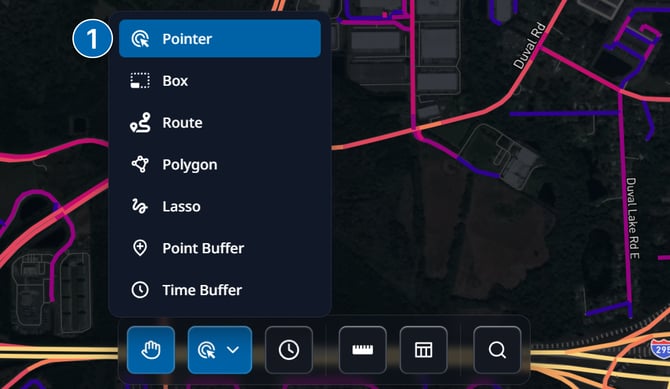
- Click the Selection Tools button in the Insights Tool Bar
- Choose Pointer from the menu
- Select links:
- Click directly on map links to select and highlight them
- Deselect links:
- Click again on any highlighted link to remove the selection
4. Saving Selection as an Area Layer:
- Click the "Save Area" button on the selection pop-up to open the save dialogue
- Give your area a name
- (optional) create a new Layer Group, or add the area to an existing Layer Group
5. Viewing Selection Analytics:
- With links highlighted, click the "Analytics" button on the selection pop-up to view an aggregated summary of selected links.
6. Clearing Selection:
- To clear your selection, click the clear button.
