![UrbanSDK_primary_logo_horizontal_white.png]](https://urbansdk-9267502.hs-sites.com/hs-fs/hubfs/UrbanSDK_primary_logo_horizontal_white.png?height=40&name=UrbanSDK_primary_logo_horizontal_white.png)
1.0 Introduction
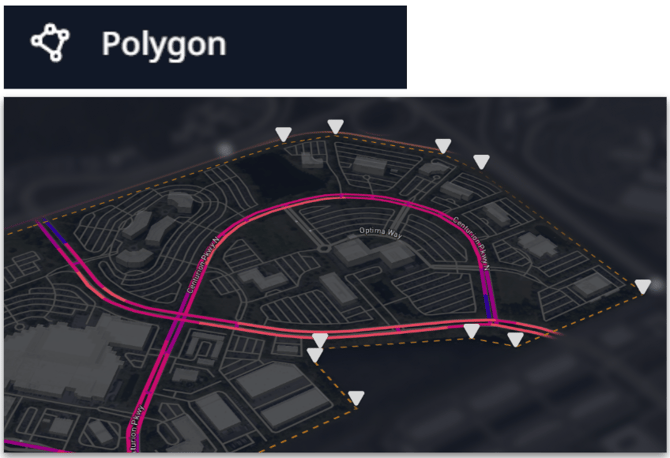
The Polygon selection enables you to quickly draw abnormal shapes to select all the links within. Best for planning and analysis across complex or custom-shaped geographies.
2.0 Polygon Selection
You can apply the following steps to use the Polygon selection.
Selecting Map Data:
- Open the tool:
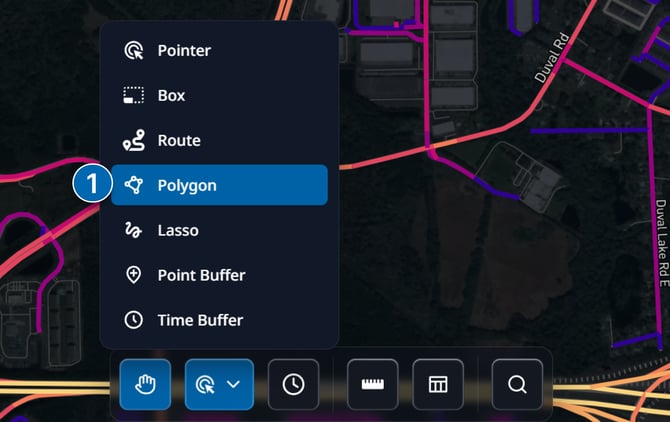
- Click the Selection Tools button in the Insights Tool Bar
- Choose Polygon from the menu
- Place points:
- Click on the map to add points (vertices) that outline your polygon
- Continue clicking to shape the area you want to select
- Close the polygon:
- Double-click to automatically connect the last point back to the first, completing the polygon
- The selected area will highlight once the polygon is closed
4. Saving Selection as an Area Layer:
- Click the "Save Area" button on the selection pop-up to open the save dialogue
- Give your area a name
- (optional) create a new Layer Group, or add the area to an existing Layer Group
5. Viewing Selection Analytics:
- With links highlighted, click the "Analytics" button on the selection pop-up to view an aggregated summary of selected links.
6. Clearing Selection:
- To clear your selection, click the clear button.
