![UrbanSDK_primary_logo_horizontal_white.png]](https://urbansdk-9267502.hs-sites.com/hs-fs/hubfs/UrbanSDK_primary_logo_horizontal_white.png?height=40&name=UrbanSDK_primary_logo_horizontal_white.png)
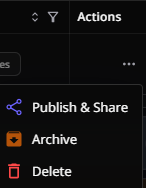
From your form, click Publish & Share to make it live and ready to start collecting responses.
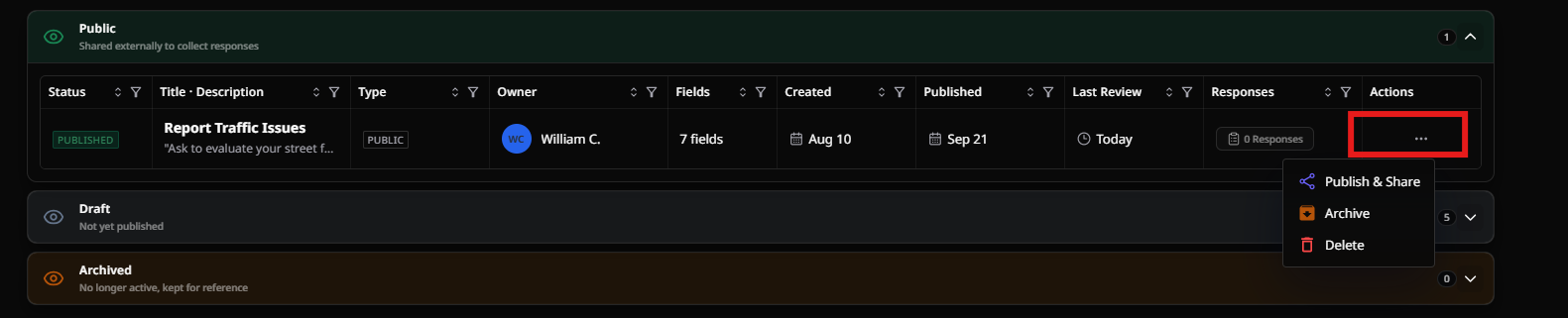
Once published, copy the direct URL to share your form — via email, social media posts, or anywhere else residents might look for it.

Head back to your forms list at any time to access embedding code and other sharing tools beyond the direct link.
4. Manage the FormFrom the forms list, you can also:
- Edit the form
- Duplicate it (useful as a starting point for a related form)
- Dive into response data whenever you need to review submissions
Click Publish and Share to see the full set of distribution options in one place.
6. Embed on Your WebsiteTo embed the form directly on your website, grab the embed code from this screen and drop it wherever it fits best on your site.
What's Next
Once your form is published and shareable, the next step is reviewing the responses as they come in — validating resident concerns against real roadway data. See the companion article: General Forms Overview (3.0) for a walkthrough of that review process, or Create a Form (3.0) if you still need to build the form itself.