![UrbanSDK_primary_logo_horizontal_white.png]](https://urbansdk-9267502.hs-sites.com/hs-fs/hubfs/UrbanSDK_primary_logo_horizontal_white.png?height=40&name=UrbanSDK_primary_logo_horizontal_white.png)
1.0 Introduction
With Insights, the Tool Bar gives you flexible map selection tools. Whether you need to summarize multiple road segments or create reusable areas and routes, these options help streamline your mapping and workflow tasks.
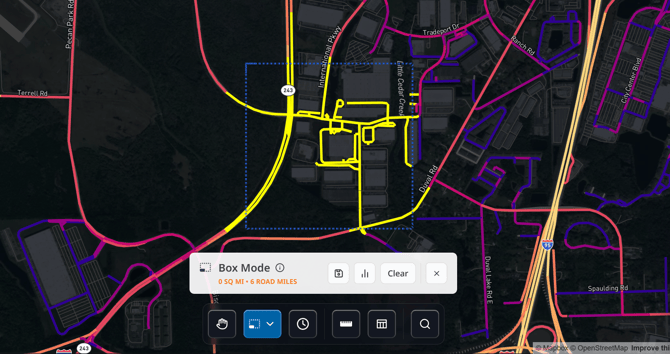
Whenever you make a map selection, a pop-up will appear above the Tool Bar enabling you to do the following with your map selection:
- Save Selection as an Area Layer: Save the polygon or route that has been drawn for the selection as an Area to re-use for mapping and workflows.
- View Aggregated Selection Analytics: View the selected data as an aggregated summary.
- Clear Selection: clear the selections that have been made on the map..
2.0 Selection Tools
Available Selection Options:
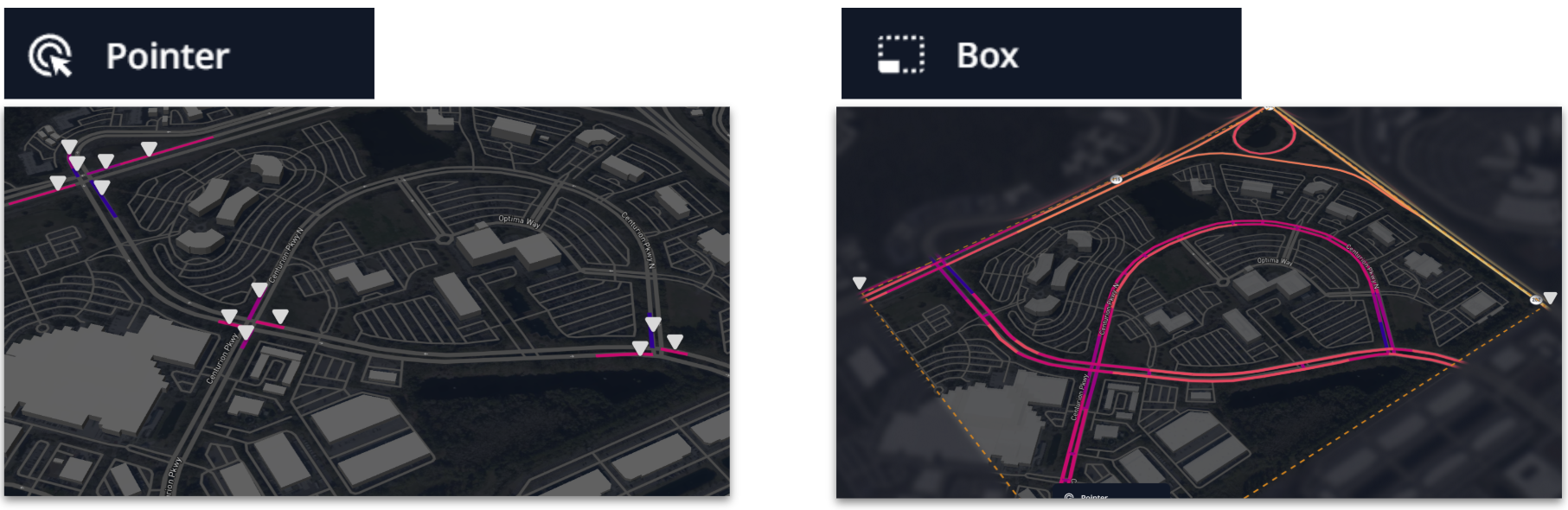
- Pointer: Click one or more links directly to target specific segments.
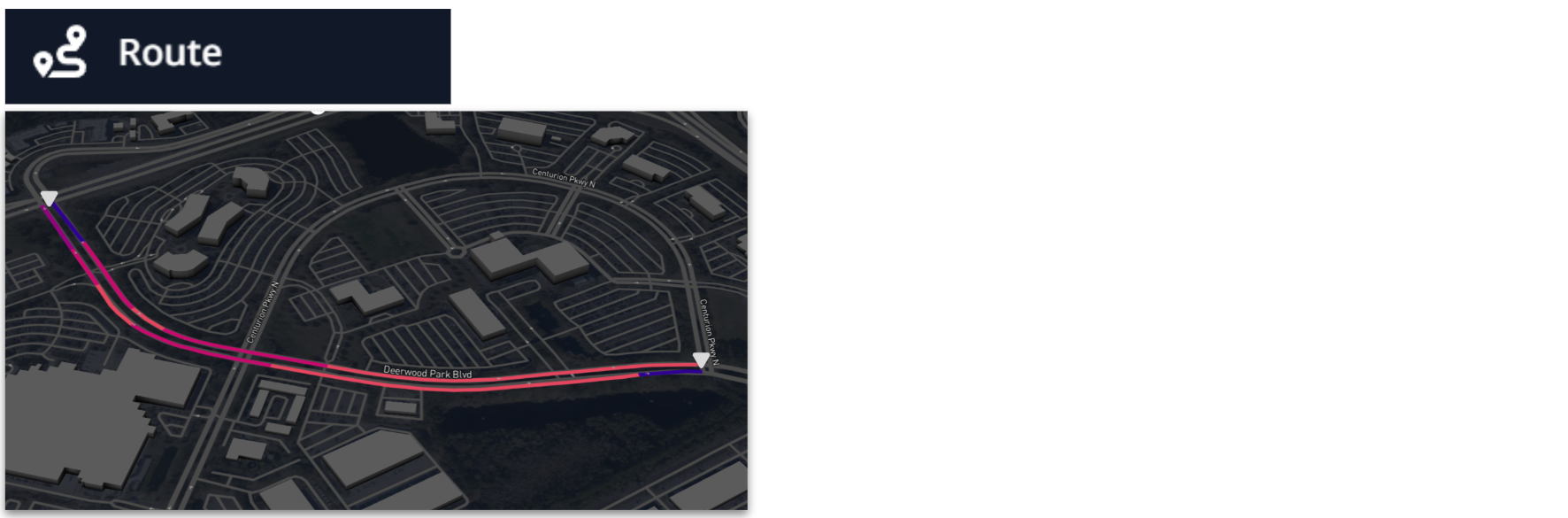
- Route: Place points to draw a continuous route for corridor-level analysis.
- Box: Click and drag to create a rectangular selection for quick area picks.
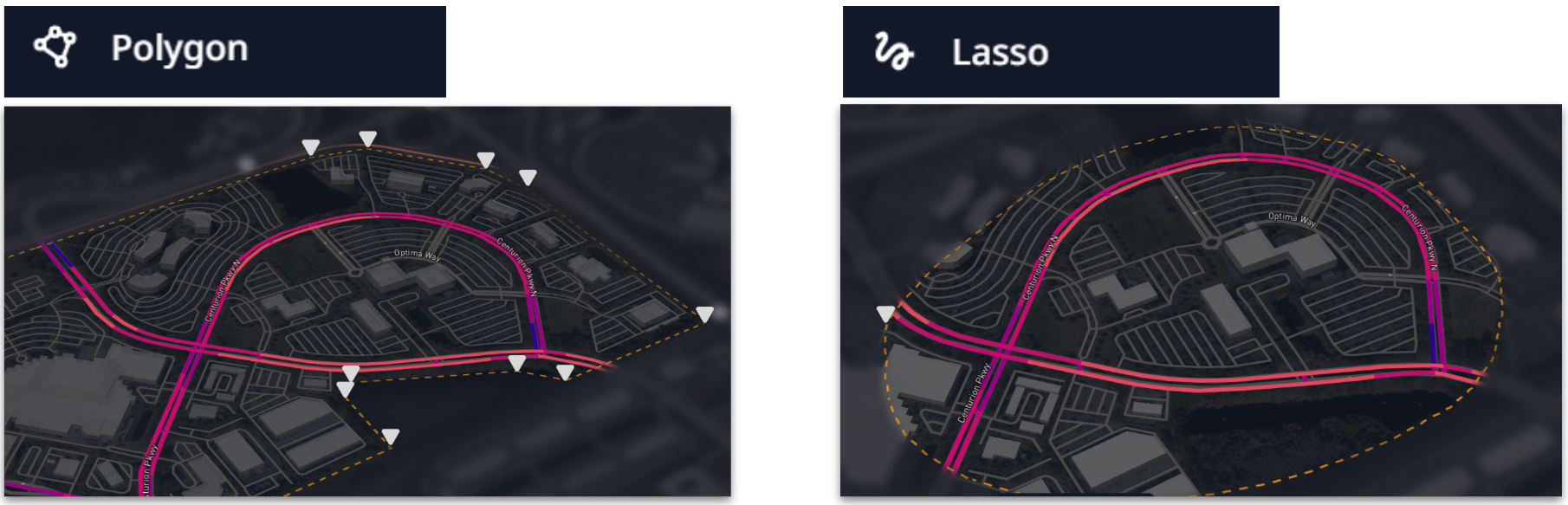
- Polygon: Draw a custom polygon to match irregular boundaries.
- Lasso: Freehand draw an area for organic, on-the-fly selections.
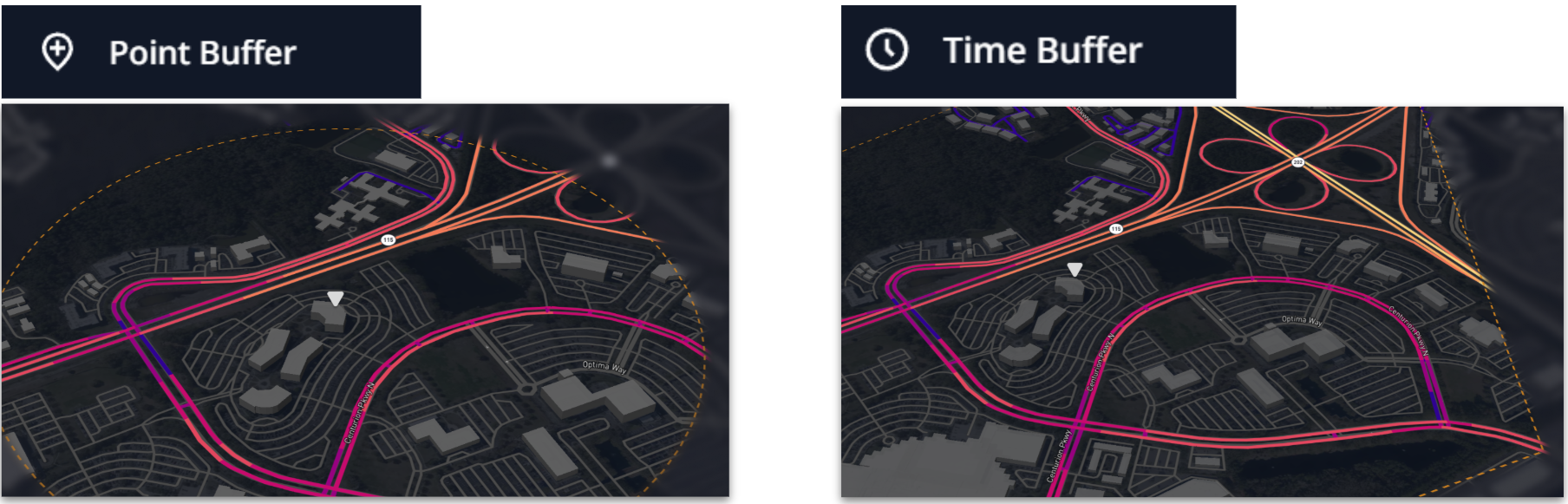
- Point Buffer: Drop a point and set a radius to capture nearby links.
- Time Buffer: Drop a point and set travel time to analyze reachable areas.