![UrbanSDK_primary_logo_horizontal_white.png]](https://urbansdk-9267502.hs-sites.com/hs-fs/hubfs/UrbanSDK_primary_logo_horizontal_white.png?height=40&name=UrbanSDK_primary_logo_horizontal_white.png)
Report Builder Overview
The new Report Builder offers more choice and editing features for users to create truly bespoke custom reports. Individual pages can be added/edited, reports can be renamed, elements can be added, removed, or edited, and metrics and scorecards can be added as needed.
Open the Report Builder
From the Toolbar
- Click the Oracle button
- Click the “Report Assistant” option from the menu displayed.
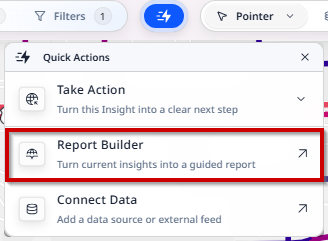
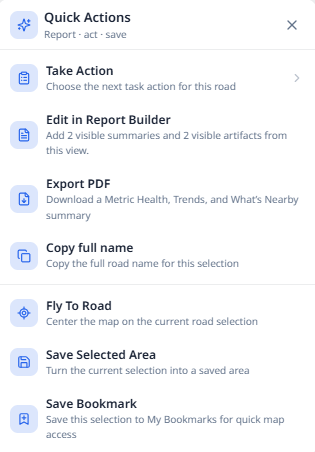
- Click the Quick Actions button
- Click the ‘Edit in Report Builder’ button
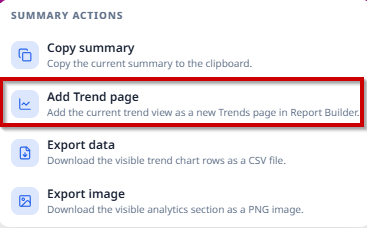
If a user would like to quickly export the data from the selected segment(s), they can do so at the top of the Analytics panel. Users can choose to edit all data in the Report Builder, or simply export a PDF of the data and summaries (if a Pro user).
Create Report
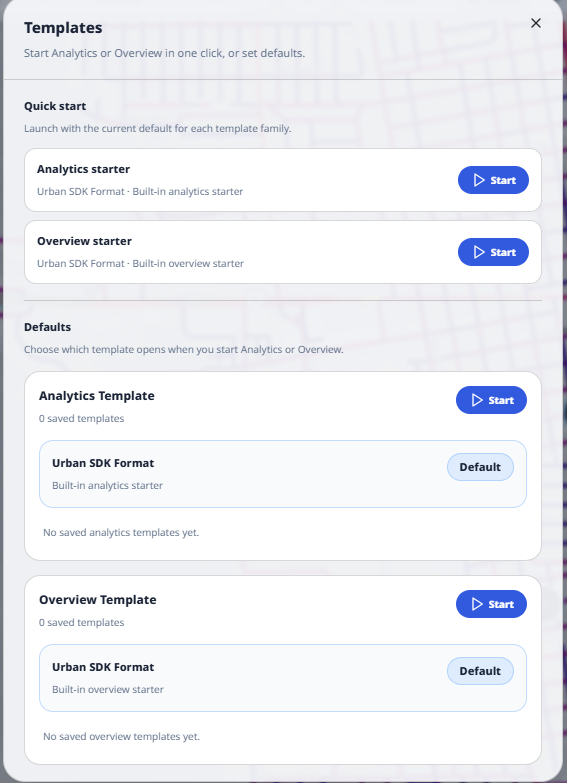
Start from a Template
- Click on the ‘Report Builder’ button in the Quick Action menu.
- Select ‘Browse Templates’
- Select one of the templates provided or update the default templates.
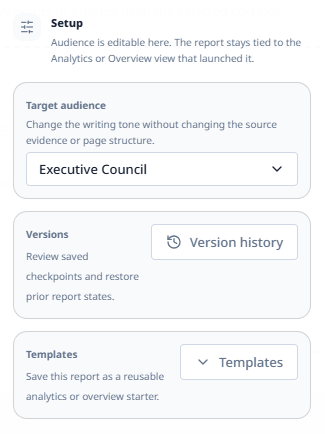
Report Setup/Settings
Users can change the settings for the Report Builder here. Users can:
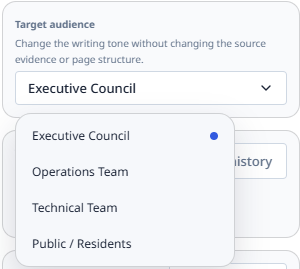
- Change the Target Audience for the report. Options include:
- Executive Council
- Operations Team
- Technical Team
- Public/Residents
- Review the different versions of the report and restore from prior versions
- Save the report as a template used as a starter for future reports.
All templates and reports will have a Cover Page, where an overview of the report can be seen. Users can use the default road link image, or upload a different image.
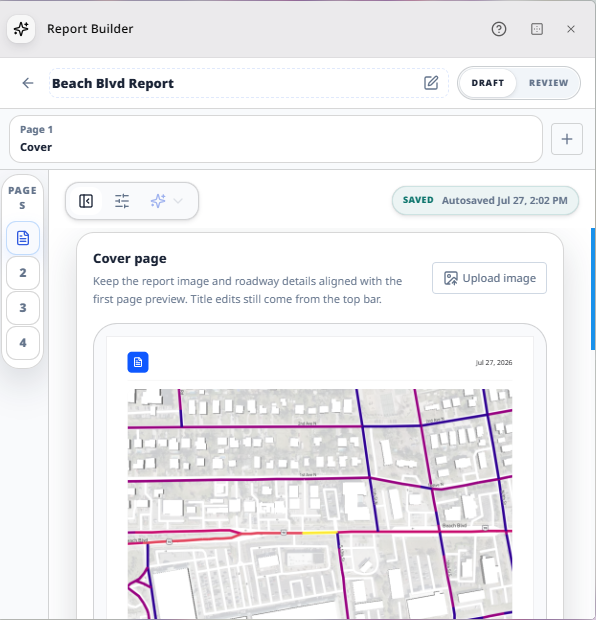
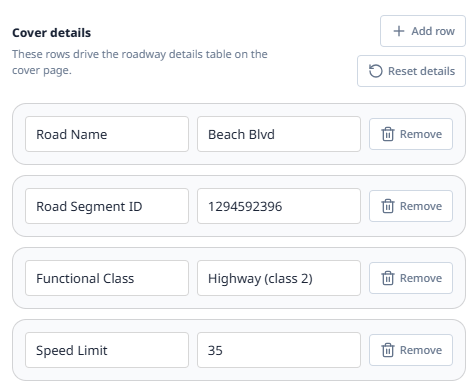
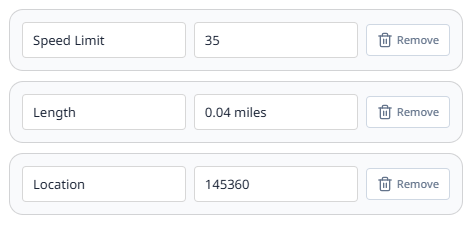
Users can adjust the details of the roadway that are displayed on the cover page.
Edit Pages
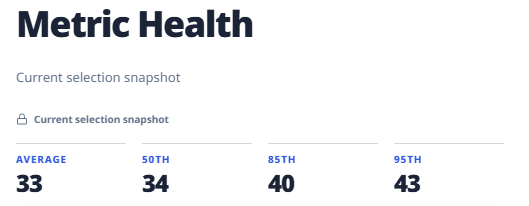
Users can update the title and subtitle of a page. The title defaults to the different metrics used.
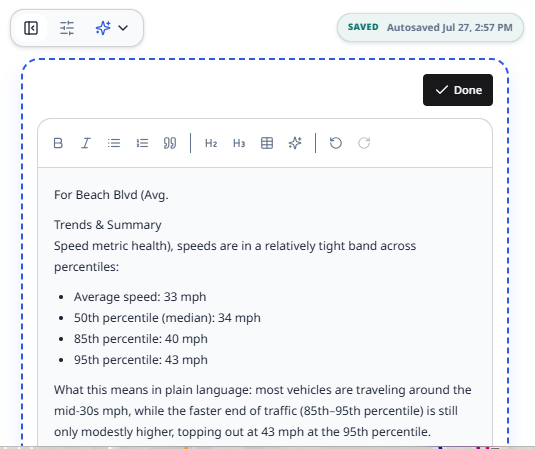
Users can update the text using AI summaries (if they are subscribed to that tool) or can copy/paste or write and edit their own text. Users can update the text provided using various formatting options (bold, italic text; bulleted and numbered lists; quotations; and headings).
Add a Page
If a user wants to add a page, they can do so at the top of the Report Builder. One click of a button and users can add or delete a page.

(Pro) Edit/Rewrite Summaries
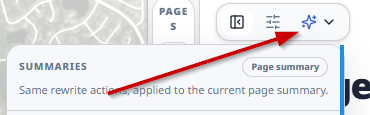
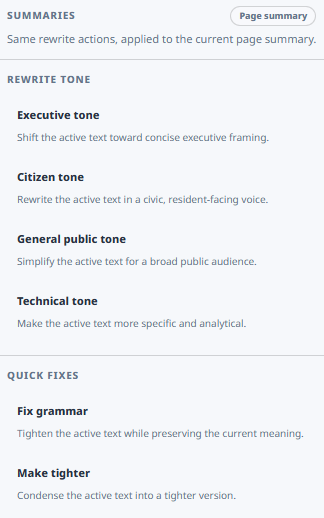
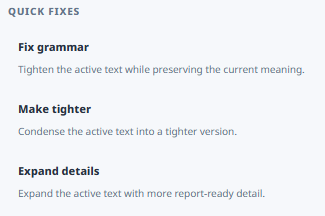
To update the tone of a summary or update the generated text, users can do so with the AI plan. At the bottom of the report, click on the icon that resembles the Quick Action button, and select from the options displayed.
Users can adjust the tone for whatever audience for which the report is intended. Aside from tone, users can update the text with different improvements/details/changes as desired or needed.
Re-order Pages
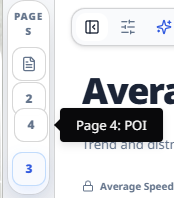
Users can reorder the pages of the report using the ‘Pages’ rail/table of contents on the left.
Preview Export
Review Toggle to View Report PDF
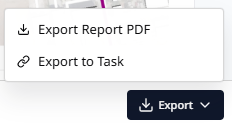
Once a user is finished building their report, they can preview it before exporting it. This is done by selecting the toggle by the title to ‘Review’. the blue eye button. Users can then export the report as a PDF, or link it to a Task in the Tasks module.
If the ‘Export to Task’ option is selected, the Tasks panel will appear, and users can select a task to which to append the report.